Now that the tools have been configured into HNQIS readable format, you can access them through the HNQIS App by the login credentials that by now must have been issued to your team by the HNQIS Administrator(s).
To start you off, here are a few things to note:
Programs and Org Units
Ensure All Checklists are Present
You MUST countercheck and verify that all the Checklists and the questions approved on the have been uploaded and are visible in the HNQIS format as you test the questions in each checklist.
- To view the checklists available, Click on All Surveys
- To view the Facilities the user has access to, Click on All Org Units (All Organization Units)
You can now go head and try it out on your device clicking In the order shown below 1 – Assess Module
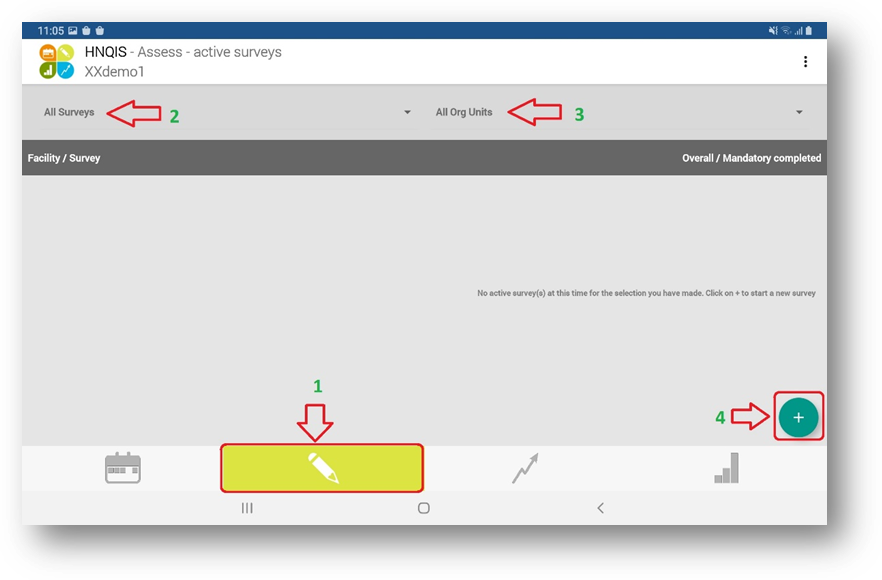 2 – Select Checklist
3 – Select Facility/ Org Unit
4 – Add a new record
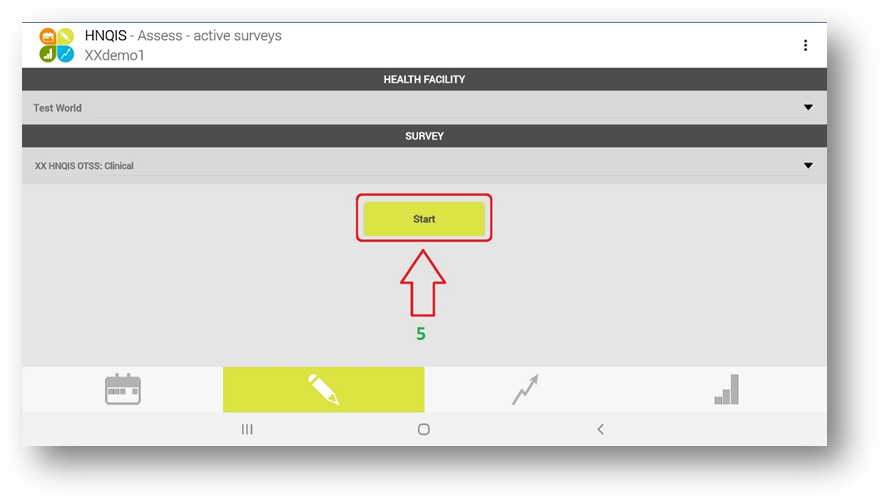
5 – Start the Survey)
Questions
In every Checklist, you will find different types of Questions. Below is a list of the type of questions you are likely to encounter
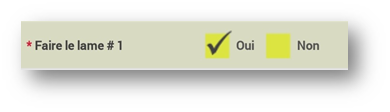
- Radio Buttons
- Horizontal or Vertical radio buttons are configured based on the UX/UI preference
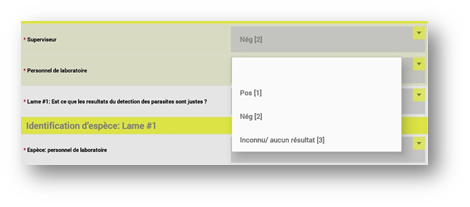
- Drop-down list
- Drop-down – This always has a list of options where a user has the option of picking only one item from the ones listed
- Text Fields
- Long Text or Short Text – This can pick letters and numeric characters.
For you to test the tools optimally, this is what you need to do and look out for:
- Scoring is well done
- You MUST check to see that the scores are well assigned as required on the checklist configured.
- To do this, you will have to go to the HNQIS Application, then on the Assess module; first, choose one checklist and a facility then the green
  button below to add a new record.

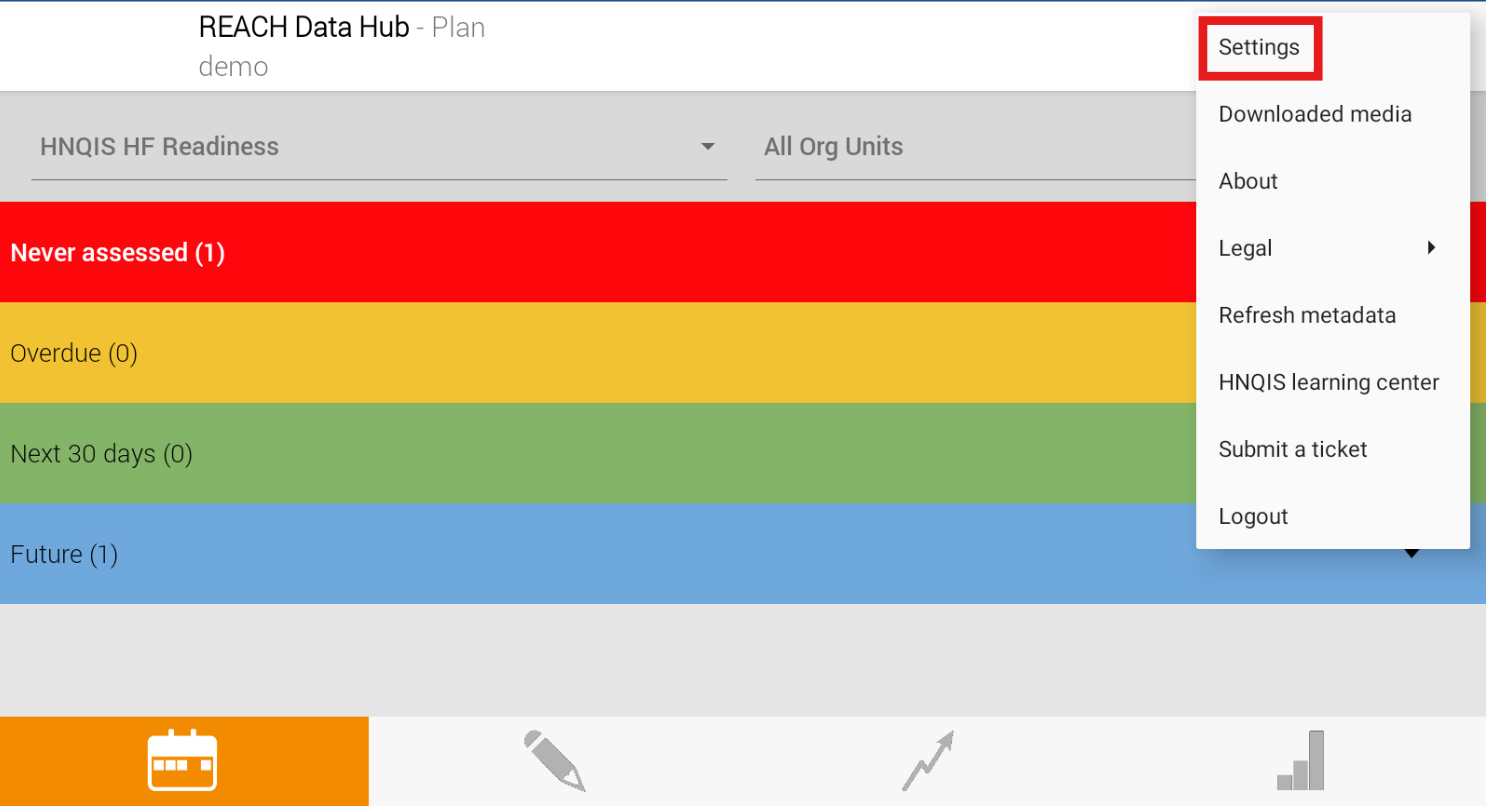
- Click on the kebab menu icon  highlighted below to provide options to access the Settings panel.
- This set of options will pop up. Click on Settings as highlighted below to get access to the developers' option checkbox
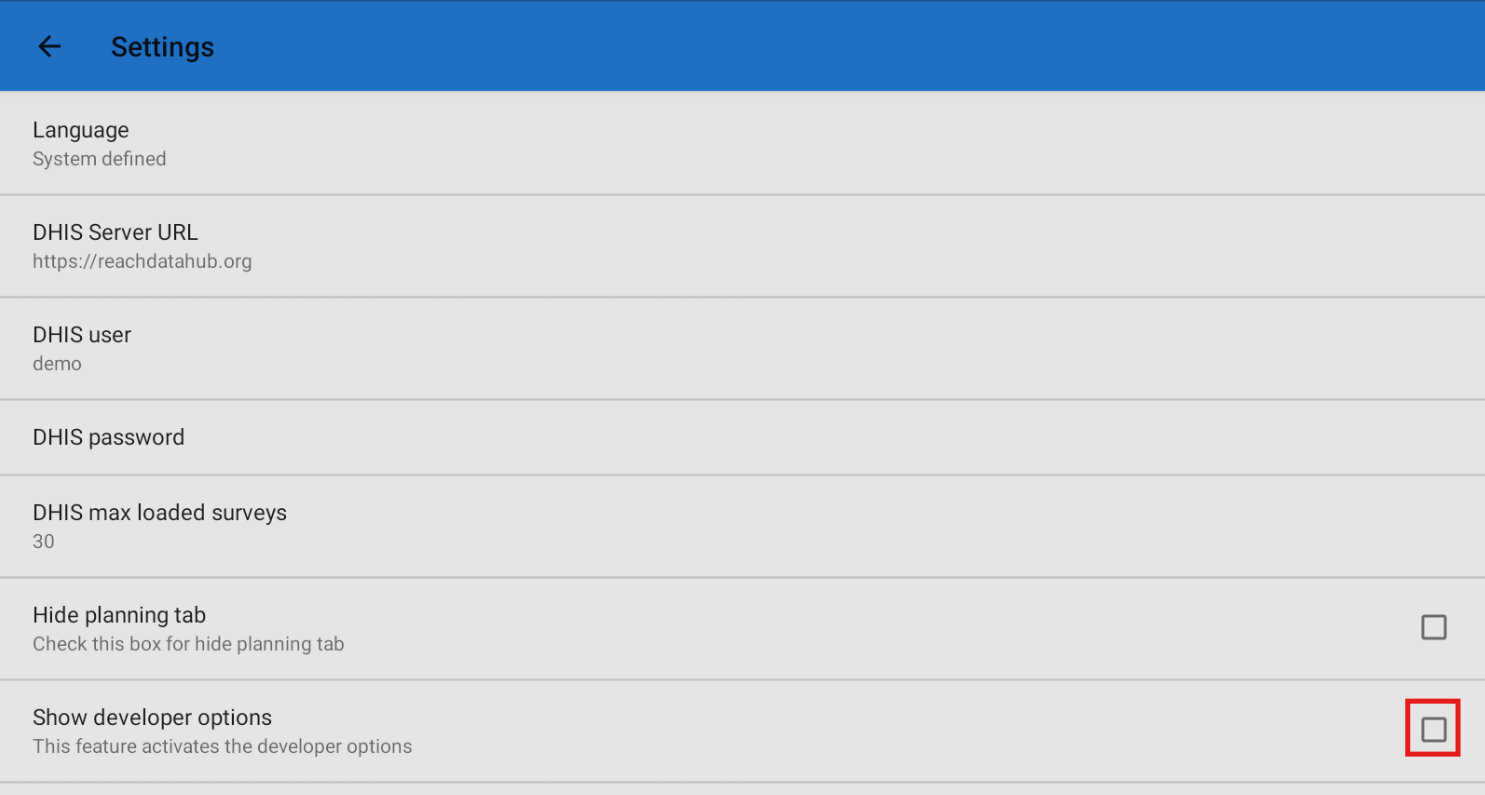
- On the Settings menu, scroll till the last item on the list - Show Developer Options; click on the empty box as highlighted below to Activate it (it should show a checked box  after activating).
Use the Back Arrow( ) to navigate back to the checklist.
Kindly note that the devices for users in the field should not activate this option - only for internal testing!
- You will now be able to see UID's of the Data Elements (Labelled 3 below), and most importantly for you, the Scores assigned to each question on the checklist (in faint red font labelled 1 and 2).
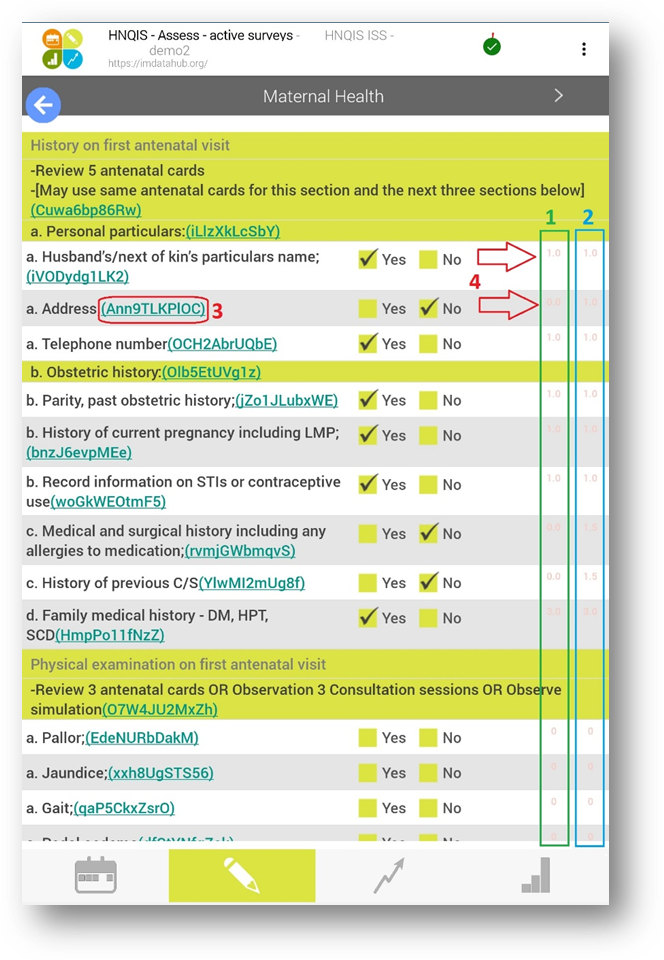
- There are 2 digits appearing per question as on the screenshot above labelled 1 and 2; the first digit (as highlighted in green) shows the score based on the answer provided (Yes/ No).
- Yes, will give a score to the first digit and No will return a Zero (Based on the checklist's score configuration). The second digit (as highlighted in blue) is the maximum allowable score for that question.

Feedback from the testing Exercise
Once you are done filling out all the questions, we would like to get your feedback regarding areas that you feel might need adjustment.
Country | Checklist Name | Section Header | Specific Question disputed | Recommended Change | Implemented? Y/N |
|
|
|
|
|
|
|
|
|
|
|
|
If you need more clarification and/or support, feel free to create a ticket and one of our agents will reach out to support you.
Was this article helpful?
That’s Great!
Thank you for your feedback
Sorry! We couldn't be helpful
Thank you for your feedback
Feedback sent
We appreciate your effort and will try to fix the article